
Key Summary:
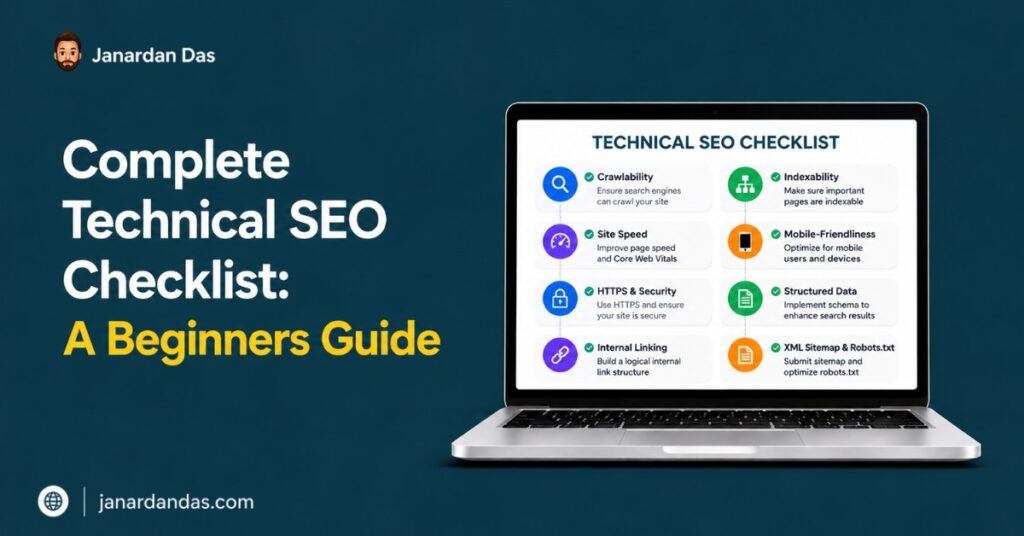
- Start every technical SEO audit with crawlability: if Google cannot reach your pages efficiently, nothing else you fix will matter.
- Indexing issues (noindexed pages, canonicalization errors, orphan pages) are the most common cause of “good content, poor rankings” problems.
- Core Web Vitals (LCP, INP, CLS) are confirmed ranking signals; a site failing even one metric is leaving rankings on the table relative to equally authoritative competitors.
- Structured data is not optional in 2026 if you are targeting featured snippets, AI Overviews, or rich results in competitive SERPs.
- Site architecture and internal linking determine how PageRank flows to your important pages; a flat, logical hierarchy consistently outperforms deep, siloed structures.
- Run a full technical audit every three to six months and a lightweight check after every significant site change (migration, theme update, new plugin install, URL restructure).
A site can have great content, solid backlinks, and still stall in the rankings. Nine times out of ten, there is a technical problem underneath. Crawl budget is being wasted on thin archives. Canonical tags are pointing Google at the wrong URL. A JavaScript-heavy page that loads fine for users but shows up half-rendered in Googlebot’s eyes.
A technical SEO checklist is not a one-time cleanup task. It is the recurring process of removing every structural barrier between your content and a first-page ranking. This guide walks you through every layer of a complete technical SEO audit, in the order that actually makes sense to run them, with the specific tools, settings, and signals to look for at each step.
The Technical SEO Audit Starts with Crawlability
Crawlability is the foundation of every technical SEO audit. If Googlebot cannot efficiently discover and access your pages, every other optimization you make operates at a fraction of its potential. Start here, always.
Auditing Your robots.txt File
Your robots.txt file is the first instruction Google receives when it visits your domain. A misconfigured robots.txt can accidentally block entire sections of your site from being crawled, or allow Googlebot to waste time on URLs that serve no indexing purpose.
Find your robots.txt at yourdomain.com/robots.txt. Pull it up and work through the following checks:
Are you blocking critical resources? JavaScript files, CSS stylesheets, and image directories must be crawlable. Google renders pages to evaluate content quality. If your render-critical resources are blocked, Google sees a broken version of your pages. This directly affects how content is understood and ranked. The most common mistake is blocking /wp-content/uploads/ or an entire /assets/ directories out of misguided server load concerns.
Are you blocking low-value admin paths? Paths like /wp-admin/, /wp-login.php, /cart/, /checkout/, /account/, and /xmlrpc.php have no SEO value. Leaving them open wastes crawl bandwidth. Disallow them explicitly.
Is there a sitemap directive? Your robots.txt should include a Sitemap: directive pointing to your XML sitemap URL. This is how Google and Bing discover your sitemap independent of Search Console submissions.
A clean robots.txt for most sites looks like:
User-agent: *
Disallow: /wp-admin/
Disallow: /wp-login.php
Disallow: /cart/
Disallow: /checkout/
Disallow: /my-account/
Allow: /wp-admin/admin-ajax.php

Sitemap: https://yourdomain.com/sitemap_index.xml
After any robots.txt change, use Google Search Console’s robots.txt Tester (under the legacy Search Console tools) or Bing Webmaster Tools to test whether specific URLs are being allowed or blocked as intended.
Crawl Budget: When It Matters and How to Audit It
Crawl budget is Google’s allocation of crawl resources to your site. For sites under 500 pages, it rarely becomes a constraint. Once you cross that threshold, especially with e-commerce sites running tens of thousands of product and filter URLs, crawl budget becomes a real ceiling on how quickly new and updated content gets indexed.
The most accurate way to audit crawl budget is through log file analysis. Your hosting server logs every request, including every Googlebot visit. Tools like Screaming Frog Log File Analyzer or Semrush’s Log File Analyzer let you upload raw server logs and filter by bot. What you are looking for:
- Crawl frequency by URL type: Are category pages and filter URLs being crawled as often as product pages and blog posts? If yes, Googlebot is distributing crawl budget based on internal link weight rather than your content priorities.
- Uncrawled important pages: Any page Googlebot has not visited in 90 or more days is effectively invisible to Google’s freshness signals. If those pages have been updated or newly published, that is a budget problem.
- Crawl rate vs. page count ratio: If you have 10,000 URLs but Googlebot is only visiting 500 per day, it will take 20 days to complete one full crawl cycle. New pages can take weeks to get indexed.
To reclaim crawl budget: noindex thin content (filter pages, faceted navigation, empty category archives), consolidate or delete near-duplicate pages, and reduce internal link equity flowing to low-value URLs.
Running a Full Site Crawl with Screaming Frog
Screaming Frog SEO Spider is the standard tool for technical SEO audits. It mimics Googlebot’s crawl behavior and returns a complete picture of your site’s technical health. Use version 21 or later.
Set it up correctly before you crawl:
- Set the user agent to “Googlebot” under Configuration > User-Agent. This shows you the site as Google sees it, not as a regular browser does.
- Enable JavaScript rendering under Configuration > Spider > Rendering > Google Chrome (Headless). This is critical for sites using React, Vue, Next.js, or any JavaScript-driven content loading.
- Set the crawl speed to match your site’s server capacity. For production sites, limit to 5 to 10 requests per second to avoid overloading shared hosting.
After the crawl, the filters you want to run first:
- Response Codes > 4xx: Broken pages. Every 404 that has inbound links is wasting PageRank.
- Response Codes > 3xx: Redirect chains. A chain of two or more redirects (A to B to C) loses PageRank at each hop. Consolidate to single-hop 301s.
- Page Titles > Missing / Duplicate / Over 60 Characters: These affect click-through rate in SERPs directly.
- Meta Description > Missing / Duplicate / Over 160 Characters: Less critical than titles for rankings, but directly affects CTR.
- H1 > Missing / Duplicate: Every page should have exactly one H1, matching or closely related to the page title.
- Canonicals > Non-Indexable Canonical: Pages with a canonical pointing to a noindexed or redirected URL create a canonicalization loop that confuses Google.
Export each filter to a spreadsheet. This is your audit working document.
Indexing Audit: The Technical SEO Checklist Items That Move Rankings Most
Indexing problems are the most common reason well-written content fails to rank. If Google is not indexing the right pages, or is indexing the wrong versions of them, your content is competing with itself.
Reading Google Search Console’s Coverage Report
The Coverage report in Google Search Console (now called the Indexing report under Index > Pages) is your primary data source for indexing issues. It splits URLs into four states: Error, Valid with warnings, Valid, and Excluded.
The states that require immediate attention:
Submitted URL has a crawl issue: Google tried to crawl this URL from your sitemap and hit a server error (5xx) or timeout. Check your server logs around the reported timeframe. Consistent crawl errors on important pages are a signal to your hosting provider to investigate server stability.
Excluded by ‘noindex’ tag: Google discovered this URL, but the meta robots tag or X-Robots-Tag header says noindex. If this is intentional, no action needed. If these are pages you want indexed, find where the noindex tag is being applied (check your CMS, plugin settings, or theme code) and remove it.
Duplicate, Google chose a different canonical than the user: You specified a canonical tag, but Google selected a different URL as the canonical. This happens when Google determines another URL is more authoritative based on inbound links or content similarity. Check whether the URL Google chose is correct. If it is not, strengthen the internal linking to your preferred canonical URL and ensure the canonical tag is consistent across all duplicate versions.
Discovered, currently not indexed: Google knows these pages exist but has not indexed them. This is usually a content quality signal, not a crawlability signal. Pages in this state are often thin, duplicative, or lack sufficient inbound links to be treated as index-worthy.
Work through the Coverage report in this order: fix Errors first, then review Valid with warnings, then investigate large volumes in the Excluded section to determine whether the exclusions are intentional.
Canonical Tags: The Most Misunderstood Part of the Technical SEO Checklist
A canonical tag (<link rel="canonical" href="..." />) tells Google which URL is the preferred version of a page when multiple URLs serve similar or identical content. Getting this wrong is the source of a lot of unexplained ranking volatility.
The rules for canonical tags that most audits skip:
Canonical tags must be self-referencing by default. Every indexable page should have a canonical pointing to itself. A page without a canonical tag is not the same as a page with a self-referencing canonical. The former gives Google no signal. The latter is an explicit claim of canonicity.
Canonical and noindex are contradictory signals. If a page has <meta name="robots" content="noindex"> and a canonical tag pointing to itself, you are telling Google two opposite things: “this is the preferred URL” and “do not index this URL.” Google will usually honor the noindex, but the conflict creates unnecessary ambiguity. Pages you want indexed should have a canonical and no noindex tag. Pages you want excluded should have a noindex and no canonical tag (or a canonical pointing to the preferred indexable version).
Canonicals do not stop crawling. A common misconception is that setting a canonical on a low-value page stops Google from crawling it. It does not. Canonicals affect indexing decisions, not crawl decisions. If you want to stop Google from crawling a URL, use robots.txt disallow. If you want to stop Google from indexing a URL, use noindex. Canonical tags are for resolving duplicate content disputes, not for managing crawl budget.
Use Screaming Frog’s Canonicals tab to audit:
- Pages where the crawled canonical differs from the advertised canonical (a sign of redirect or configuration conflicts)
- Pages where the canonical points to a 404 or a redirected URL
- Pages with no canonical tag at all
Orphan Pages and Internal Link Architecture
Orphan pages are pages with no internal links pointing to them. They exist in your sitemap and on your server, but they receive no PageRank from the rest of your site. In Google’s link graph, they are islands.
To find orphan pages: crawl your site with Screaming Frog, export the crawled URLs list. Then download your XML sitemap URLs. Use a VLOOKUP in Excel or a diff in Google Sheets to identify URLs present in the sitemap but absent from the crawled list (meaning Screaming Frog never found them through internal links).
Every orphan page is a content asset you are underinvesting in. The fix is linking to it contextually from relevant content. Not from the footer, not from a generic “you might also like” widget. From the body of a related article, where the link genuinely helps the reader.
For large sites, prioritize orphan pages by their organic potential. Use Ahrefs Site Explorer to check whether any orphan pages have referring domains or keyword rankings. If a page has external links pointing to it but no internal links, it is losing PageRank to the external web rather than recirculating it through your own site.
Core Web Vitals: The Technical SEO Audit for Page Experience
Core Web Vitals are Google’s page experience metrics. In 2026, Google measures three signals: Largest Contentful Paint (LCP), Interaction to Next Paint (INP), and Cumulative Layout Shift (CLS). These are not soft recommendations. They are confirmed ranking factors with real-world impact in competitive SERPs.
Google uses real-user data from the Chrome User Experience Report (CrUX) to measure these, not just lab data from PageSpeed Insights. Your rankings are affected by what actual Chrome users experience on your pages, not what a test tool reports in ideal conditions.
LCP: Finding and Fixing the Largest Contentful Paint
LCP measures how long it takes the largest visible element above the fold to fully load. For most content sites, that element is a hero image or the featured image at the top of a post. For SaaS landing pages, it might be a headline or an above-the-fold video thumbnail.
The passing threshold is under 2.5 seconds. The “needs improvement” range is 2.5 to 4 seconds. Anything above 4 seconds is a failing LCP, and Google treats it as a poor page experience signal.
How to identify your LCP element: Open Chrome DevTools, go to the Performance tab, record a page load, and look for the LCP annotation in the timeline. Alternatively, run the URL through PageSpeed Insights (pagespeed.web.dev) and scroll to the Diagnostics section. It will name the specific element causing your LCP.
The fixes, in order of impact:
Reduce Time to First Byte (TTFB). TTFB is the time between the browser sending a request and receiving the first byte of HTML. Google’s threshold for a fast TTFB is under 800ms. Shared hosting without server-side caching regularly produces TTFB above 1,500ms. Fix: enable full-page caching (WP Rocket, LiteSpeed Cache, or Nginx FastCGI cache depending on your stack), use a CDN (Cloudflare is free and reduces TTFB significantly for international users), and move to a server with dedicated resources if you are on shared hosting.
Preload your LCP image. The browser discovers images after it parses the HTML, which means the LCP image starts downloading later than it should. Adding a <link rel="preload" as="image" href="..."> tag in the document <head> tells the browser to start fetching the image before it encounters the <img> tag in the body. WP Rocket’s “Preload LCP Image” feature does this automatically for WordPress. For custom builds, you need to add the preload tag programmatically based on which image is above the fold for each page template.
Serve images in next-gen formats with correct sizing. A 1,200px hero image served at 4,000px wastes bandwidth. Use srcset to serve appropriately sized images at each breakpoint. Serve WebP to Chrome and AVIF to browsers that support it. WebP is 25 to 35% smaller than JPEG at equivalent quality. AVIF is 40 to 50% smaller. Both reduce download time directly.
INP: The Core Web Vitals Most Sites Are Currently Failing
INP (Interaction to Next Paint) replaced FID in March 2024. It measures the latency of all user interactions on a page, specifically the time from when a user clicks, taps, or presses a key to when the browser paints a visual response. The passing threshold is under 200 milliseconds.
INP is harder to fix than LCP because it involves JavaScript execution on the main thread. Every script that runs during a user interaction delays the response. The more JavaScript your page loads, the more opportunities there are for INP to fail.
Diagnosing INP problems: PageSpeed Insights will flag INP failures and list the “Minimize main-thread work” and “Reduce JavaScript execution time” diagnostics. Click into these to see which specific scripts are the heaviest. The Chrome DevTools Performance tab lets you record an interaction and see exactly which functions are running during the delay.
The usual culprits: chat widget scripts (Intercom, Drift, Zendesk), analytics platforms loading synchronously, third-party social sharing buttons, newsletter popup scripts, and page builder JavaScript payloads.
The fixes that actually work:
Delay non-critical JavaScript until after user interaction. WP Rocket’s “Delay JavaScript Execution” setting defers all non-essential scripts until the user first interacts (scrolls, clicks, moves the mouse). This dramatically improves INP scores because the main thread is free during initial page load and early interactions.
Load third-party scripts with the defer attribute instead of synchronously in the <head>. defer means the script downloads in parallel with HTML parsing but executes after the HTML is fully parsed. This prevents render blocking without breaking script dependencies.
If you are using a heavy page builder (Elementor, Divi, WPBakery), benchmark the JavaScript payload it generates per page. Elementor’s front-end scripts can add 200KB or more of JavaScript to every page. For high-traffic pages, a lightweight custom theme built on the block editor or a minimal page builder like Bricks will consistently outperform heavy builders on INP.
CLS: Eliminating Cumulative Layout Shift
CLS measures unexpected visual shifts in page content during loading. A score above 0.1 is a failing grade. The most common CLS causes: images without explicit dimensions, web fonts causing text reflows, and late-loading ads or embeds that push content down.
Images without width and height attributes. When a browser loads HTML, it cannot reserve space for images unless you tell it how large they will be. Without width and height in the <img> tag, the browser allocates no space, then shifts everything down when the image loads. Fix: every <img> tag must have explicit width and height attributes matching the image’s intrinsic dimensions. Set height: auto in CSS to allow responsive scaling.
Web font layout shift. Browsers display fallback system fonts while a web font downloads. When the web font loads, the text reflows to the new font metrics, causing CLS. The fix is two-part: add font-display: swap to your @font-face declarations (so the browser uses the fallback immediately rather than hiding text), and self-host your web fonts rather than loading them from Google Fonts. Self-hosted fonts on your CDN load faster than fonts from an external CDN and eliminate the DNS lookup latency.
Embeds and iframes without dimensions. YouTube embeds, Twitter/X embeds, and ad slots need explicit width and height in the markup. If you are using a lazy-loading iframe plugin, verify it reserves space for the iframe before the content loads.
Check your CLS score in the Chrome User Experience Report directly via the PageSpeed Insights URL-level report. PageSpeed Insights shows both field data (real users) and lab data (simulated). Your rankings are based on field data, so prioritize fixing CLS issues that appear in the field data column, even if the lab score looks acceptable.
Site Architecture and Internal Linking in a Technical SEO Audit
Site architecture determines how Google perceives the topical hierarchy of your site and how PageRank flows to your important pages. A flat architecture (everything reachable within three clicks of the homepage) consistently performs better than deep, siloed structures in Google’s crawl and link graph models.
The Three-Click Rule and Why It Still Matters
Google’s crawl depth model assigns diminishing PageRank to pages that are farther from the homepage in terms of clicks. A page reachable in one click from the homepage receives more PageRank than one reachable in five clicks, assuming equal inbound links. This is not a theory. It is the direct consequence of how PageRank calculation works across a link graph.
The practical benchmark: every important page on your site should be reachable within three clicks of the homepage. For e-commerce sites, that means: Homepage > Category > Product. For content sites: Homepage > Category > Post.
Use Screaming Frog’s Crawl Depth report (Reports > Crawl Depth) to visualize how many clicks each URL requires from the homepage. Filter for pages deeper than level 4. Every important page in that list needs to be linked to from a shallower URL.
Internal Linking for PageRank Distribution
Internal links do two things simultaneously: they help users navigate your site, and they pass PageRank between pages. Most SEO guides focus only on the navigation function. The PageRank distribution function is where the real technical SEO value is.
Link from your highest-authority pages to your target pages. Use Ahrefs Site Explorer to identify which pages on your site have the most referring domains (the Pages > Best by Links report). These are your PageRank reservoirs. A contextual internal link from a page with 50 referring domains passes significantly more PageRank to the destination than a footer link from a page with two.
Anchor text matters for internal links. Use descriptive, keyword-relevant anchor text for internal links. Not “click here.” Not “read more.” If you are linking to a post about technical SEO checklist items, use anchor text like “technical SEO checklist” or “complete SEO audit process.” This tells Google what the destination page is about and reinforces its topical relevance.
Audit internal links with Screaming Frog’s Bulk Export. Go to Reports > Bulk Export > All Inlinks. This gives you every internal link on your site with source URL, destination URL, anchor text, and whether it is followed or nofollowed. Filter for your most important pages as destinations and audit the anchor text diversity and the source page authority.
One internal linking mistake I see regularly: sites that build PageRank to top-level category pages but orphan the individual posts within those categories from getting any direct internal links from other high-authority content. Posts end up ranking for category-level queries when they should be ranking for specific queries because all the link equity pools at the category level.
Breadcrumb Structure and Its Role in Technical SEO
Breadcrumbs serve three technical SEO functions at once. They create a clear URL hierarchy signal for Google, they provide BreadcrumbList schema markup opportunities, and they add navigational internal links that strengthen the category-to-post PageRank flow.
Verify your breadcrumbs output is correctly structured data by testing a URL in Google’s Rich Results Test. The BreadcrumbList schema items should match the visible breadcrumb text on the page. Mismatches between visible breadcrumbs and schema output are a structured data quality issue Google flags.
For e-commerce sites, breadcrumbs are especially important when a product belongs to multiple categories. The canonical breadcrumb trail should reflect the primary category, and the breadcrumb schema should match. If your site uses WooCommerce and a product is listed under both “Shoes” and “Sale,” decide which category is primary, set that as the canonical breadcrumb, and ensure the product’s canonical URL reflects that category path.
Structured Data: The Technical SEO Checklist for Rich Results
Structured data (schema markup) is a machine-readable context you add to your pages so Google understands what type of content each page contains. In 2026, it directly affects eligibility for featured snippets, rich results (star ratings, FAQs, How-To steps, breadcrumbs in SERPs), and AI Overview citations.
The absence of schema markup does not guarantee you will not get rich results. Google can sometimes infer structure from your HTML. But explicit schema markup dramatically increases the probability and consistency of rich result display.
How to Audit Existing Schema Markup
Before adding new schema, audit what you currently have. Two tools handle this:
Google’s Rich Results Test (search.google.com/test/rich-results): Enter any URL to see which schema types Google detects, which properties are present, and which are missing or invalid. This is your primary validation tool.
Schema Markup Validator (validator.schema.org): This tests against the full Schema.org specification, not just Google’s supported types. Use it to catch schema syntax errors that the Rich Results Test might not flag.
Run both tools on a sample of your most important pages: your homepage, top five blog posts by organic traffic, main product pages, and your About page. Export the findings into your audit document.
Common schema errors to look for:
- Missing required properties: Google’s documentation for each schema type specifies which properties are required versus recommended. For Article schema,
headline,author,datePublished, andimageare required. Missing any of them invalidates the markup for rich result purposes. - Nested entity errors: Person schema nested inside Organization schema, or Author schema without a matching URL property, are frequent issues in automatically generated schema from SEO plugins.
- Stale date Modified values: If you updated a post but the schema
dateModifiedstill shows the original publish date, Google may deprioritize the content in freshness-sensitive queries. Verify your CMS updates this property automatically.
Article and FAQ Schema: The Highest-Priority Schema Types for Content Sites
For content sites and blogs, the Article schema and the FAQ schema deliver the most direct ranking value.
Article schema establishes the content’s type, author, publication entity, and temporal context. The author entity within Article schema should link to an Author page URL that itself contains the Person schema. That Person schema should include a sameAs array listing the author’s profiles on LinkedIn, Twitter/X, and authoritative external sources. This is how Google verifies E-E-A-T (Experience, Expertise, Authoritativeness, Trustworthiness) at the schema level, not just the content level.
FAQ schema enables the accordion-style FAQ rich result in Google SERPs. Even on queries where the accordion does not trigger, FAQ schema provides Google with clean, extractable question-answer pairs that feed directly into AI Overview citations. I have seen FAQ-schemed content get cited in AI Overviews for questions that the page was not specifically targeting, because the schema gave Google structured answers it could confidently attribute.
Add the FAQ schema only to pages with a genuine FAQ section. The questions must appear visibly on the page. The schema answers must match the visible text. Google’s quality guidelines flag schema that marks up content not visible to users as spam.
Product, Local Business, and How-To Schema for Specialized Sites
For e-commerce sites, Product schema with offers, aggregateRating, and review properties enable star ratings in product SERPs. These directly improve click-through rate. A product listing with star ratings and price information visible in the SERP consistently outperforms a plain blue link for commercial queries.
For local businesses, LocalBusiness schema with name, address, telephone, openingHours, and geo Properties support the Knowledge Panel and Local Pack features. Verify your schema matches your Google Business Profile information exactly. Discrepancies between the schema and the GBP data confuse Google’s entity resolution and can suppress Knowledge Panel display.
For tutorial and instructional content, HowTo schema enables the step-by-step rich result on desktop SERPs. Each step in the schema must correspond to a visible numbered step on the page. Use this for content that genuinely guides users through a process, not for content repackaged as a how-to to capture the rich result.
HTTPS, Site Security, and Technical Infrastructure Checks
The technical SEO checklist does not end at content and structure. The infrastructure your site runs on directly affects crawlability, trust signals, and page speed.
HTTPS Audit: Beyond Just Having an SSL Certificate
Having an SSL certificate installed is the baseline. What most checklists miss is whether HTTPS is implemented correctly from an SEO standpoint.
Check for mixed content. Mixed content is when an HTTPS page loads resources (images, scripts, stylesheets, fonts) over HTTP. Browsers block or warn about mixed content, which can degrade user experience and page rendering. Run your URL through Why No Padlock (whynopadlock.com) to identify mixed content sources. The fix is updating resource URLs from http:// to https:// in your CMS, database, or configuration files.
Verify 301 redirects from HTTP to HTTPS. Every HTTP URL on your domain should 301 redirect to its HTTPS equivalent. Use httpstatus.io to test any HTTP URL and confirm it returns a 301, not a 302 (temporary redirect) or a direct 200 (meaning HTTP content is still being served). A 302 from HTTP to HTTPS does not pass full PageRank.
Check for redirect chains at the HTTP-to-HTTPS transition. A chain like http://example.com to http://www.example.com to https://www.example.com is a two-hop redirect chain. Each hop dilutes PageRank. Consolidate to a single 301 from the HTTP non-www to the HTTPS www (or vice versa, depending on your preferred domain version).
Confirm Google Search Console is verified on the HTTPS version. Google treats http://, https://, http://www., and https://www. as four separate properties. Your primary Search Console property should be the HTTPS version. If you migrated from HTTP to HTTPS in the past, confirm you set the preferred domain and submitted your HTTPS sitemap.
Page Speed Infrastructure: Hosting, CDN, and Caching
Page speed is not purely a front-end optimization problem. The server configuration underneath your site determines how fast every page starts loading before a single byte of HTML reaches the user.
Hosting tier and server response time. TTFB above 800ms on a freshly loaded page (with no cache) suggests either an underpowered hosting plan, an unoptimized database, or a PHP execution bottleneck. Test TTFB with GTmetrix (gtmetrix.com) using the “Use a Cable connection” setting to simulate real-user conditions. If TTFB exceeds 800ms on your most important pages, the fix is server-level: move to a managed WordPress host (Kinsta, WP Engine, Cloudways), enable server-side caching (Redis or Memcached for object caching, Nginx FastCGI cache for page caching), or optimize slow database queries.
CDN configuration for global audiences. A CDN (Content Delivery Network) caches your static assets (images, CSS, JavaScript) across a global network of edge servers. Users receive files from the nearest edge location rather than your origin server. Cloudflare’s free plan reduces TTFB and improves load time for international users. For the biggest performance gains, enable Cloudflare’s “Cache Everything” rule for static pages and verify cache-hit rates in the Cloudflare dashboard.
Server-side compression. Every HTML, CSS, and JavaScript response should be compressed before delivery. Brotli compression reduces text file sizes by 15 to 20% more than Gzip. Verify compression is enabled by using a tool like GiftOfSpeed’s Gzip/Brotli Test. If compression is not enabled, add it at the server level in your Nginx or Apache configuration, not through a WordPress plugin.
Handling Redirect Chains and Redirect Loops
A redirect chain is a sequence of redirects: URL A redirects to URL B, which redirects to URL C. Every hop in the chain dilutes the PageRank being passed and adds latency to the page load. A redirect loop is when the chain never resolves (A redirects to B, B redirects to A).
After a site migration, URL restructure, or major content consolidation, redirect chains are common and often invisible until you audit them. Screaming Frog shows redirect chains in the Response Codes tab. Filter by 3xx responses and use the “Jump to” column to see the final destination of each redirect. Any chain with more than one hop should be updated to a direct single-hop 301.
Redirect loops surface in Screaming Frog as URLs that cycle without returning a 200 response. In Google Search Console, they appear as crawl errors under the Coverage report. Fix by tracing the redirect sequence manually and removing the circular reference in your server configuration or CMS redirect settings.
Technical SEO Audit for International Sites: hreflang and Geotargeting
If your site targets multiple languages or geographic regions, hreflang tags are a required part of your technical SEO checklist. Getting them wrong is one of the more expensive international SEO mistakes a site can make.
hreflang: What It Does and How to Implement It
hreflang tells Google which version of a page to serve to users in specific language and region combinations. Without it, Google guesses, and its guesses are often wrong: an English (UK) page ranking for English (US) queries, or a Spanish (Spain) page outranking a Spanish (Mexico) page for Mexican searchers.
The implementation requirements:
Reciprocal tags are mandatory. If Page A lists Page B in its hreflang, Page B must list Page A in its hreflang. Google ignores hreflang tags that are not reciprocated. This is the most common hreflang error and the one that makes the entire implementation useless.
Every language version must be self-referencing. Include an hreflang tag for the page’s own language and region, pointing to itself, alongside the tags for other language variants.
Use the correct language and region codes. Language codes follow ISO 639-1 (e.g., en for English, es for Spanish). Region codes follow ISO 3166-1 Alpha-2 (e.g., US for United States, GB for United Kingdom). Combined tags look like en-US, es-MX, fr-FR. Use an x-default tag for the version to serve to users who do not match any language-region combination.
Audit hreflang with Screaming Frog: go to Reports > hreflang > All Errors. It checks for missing return tags, incorrect language codes, pointing to noindexed URLs, and unlinked alternate pages.
Geotargeting in Google Search Console
For country-specific subdirectories (/us/, /uk/) or subdomains (us.example.comYou can set a geotarget in Google Search Console at the property level. Go to Settings > International Targeting > Country and select the target country.
Country-specific domains (ccTLDs like .co.uk or .de) have implicit geotargeting and do not need this setting. Subdirectories and subdomains on a generic top-level domain (.com, .org, .net) benefit from explicit geotargeting.
Frequently Asked Questions
What is a technical SEO checklist?
A technical SEO checklist is a structured audit framework covering every infrastructure-level factor that affects how search engines crawl, index, and rank a website. It includes crawlability (robots.txt, crawl budget), indexing (canonical tags, meta robots, sitemap health), page speed (Core Web Vitals), site architecture (URL structure, internal linking), structured data (schema markup), and security (HTTPS configuration). Running through a complete technical SEO checklist identifies the structural issues preventing a site from ranking at its full potential.
How long does a complete technical SEO audit take?
A thorough technical SEO audit takes between four and twelve hours for a site under 10,000 pages. The time depends on site size, the number of issues found, and how deep you go into log file analysis and structured data validation. For larger sites (100K+ pages), a full audit with log file analysis and crawl budget review can take two to three days. The crawl itself with Screaming Frog runs overnight for large sites.
What tools do I need to run a technical SEO audit?
The core tool set for a technical SEO audit is: Google Search Console (free, essential for indexing and crawl data), Screaming Frog SEO Spider (free up to 500 URLs, paid license for larger sites), PageSpeed Insights (free, Core Web Vitals data), Ahrefs or Semrush (for backlink data and site-wide issue scanning), and Google’s Rich Results Test (free, schema validation). Log file analysis tools like Screaming Frog Log File Analyzer are optional but valuable for sites above 1,000 pages.
What is the difference between a technical SEO audit and an on-page SEO audit?
A technical SEO audit examines the infrastructure of a site: how it is crawled, indexed, served, and structured. An on-page SEO audit examines the content of individual pages: keyword usage, title tags, heading structure, internal links, and content quality. Both are necessary for a complete SEO strategy. Technical SEO creates the foundation. On-page SEO builds on it. A site with strong on-page SEO but technical problems (slow TTFB, canonical errors, JavaScript rendering issues) will consistently underperform a technically sound site with equivalent content.
How often should a technical SEO audit be run?
Run a full technical SEO audit every three to six months for active sites. Run a lightweight audit (Search Console Coverage report review plus a Screaming Frog crawl) after any major site change: CMS update, theme change, plugin install or removal, URL restructure, server migration, or significant content deletion. Many technical SEO issues are introduced inadvertently during routine site maintenance, not through deliberate changes.
Does fixing technical SEO issues directly improve rankings?
Fixing technical SEO issues removes obstacles that prevent your existing content and links from being properly valued by Google. It is not a guarantee of higher rankings; it is the removal of a ceiling on them. A site with content at the 70th percentile of quality but strong technical SEO will rank higher than a site with equivalent content and serious technical problems. The biggest ranking gains from technical fixes come when the issues are acute: sites with noindexed pages, severe LCP failures, or canonical conflicts see significant improvements after fixing them. Sites with already-clean technical setups gain less from incremental technical improvements and should focus on content and links.
What are the most impactful technical SEO issues to fix first?
Fix in this order, based on impact: (1) noindexed pages that should be indexed, (2) 4xx errors on pages with inbound links, (3) failing Core Web Vitals (especially LCP above 4 seconds), (4) canonical tag conflicts (Google choosing a different canonical than specified), (5) redirect chains of two or more hops, (6) XML sitemap quality (removing noindexed, redirected, and 4xx URLs), (7) missing or invalid schema markup for eligible rich result types. Issues at the top of this list affect how many of your pages Google indexes. Issues at the bottom affect how those indexed pages perform in SERPs.